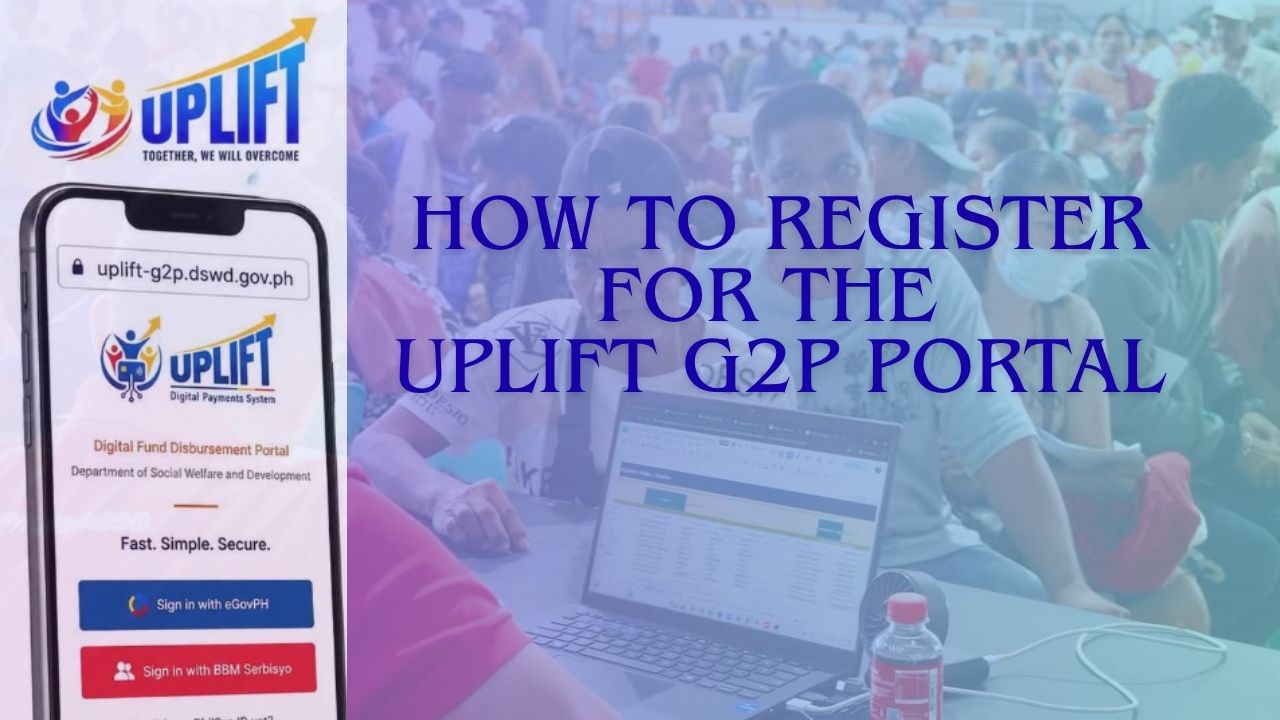
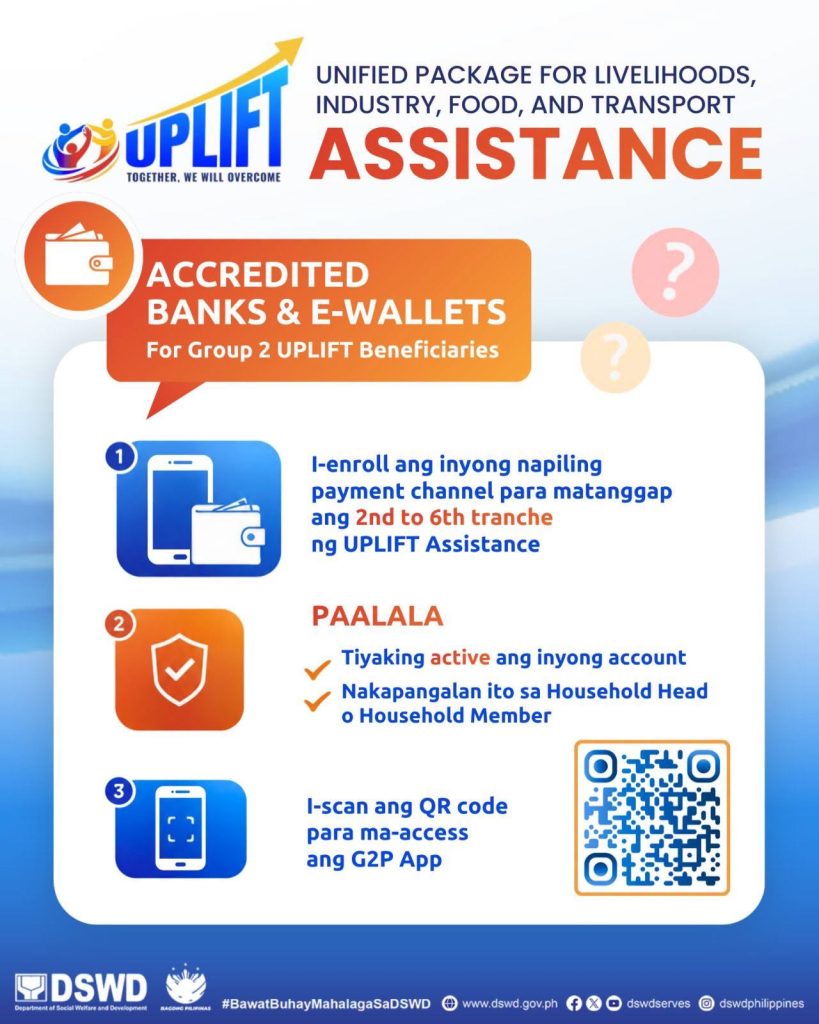
The UPLIFT G2P (Government-to-Person) Portal is an online platform run by the Department of Social Welfare and Development (DSWD) to process the enrollment of qualified UPLIFT assistance Group 2 beneficiaries’ bank or e-wallet accounts. It is accessible online through any browser on a phone, tablet, or computer with an internet connection and was created so the UPLIFT beneficiaries can safely submit or verify their chosen Financial Service Provider (FSP) details, allowing their cash assistance to move directly and securely from government to household for the the 2nd through 6th tranches.
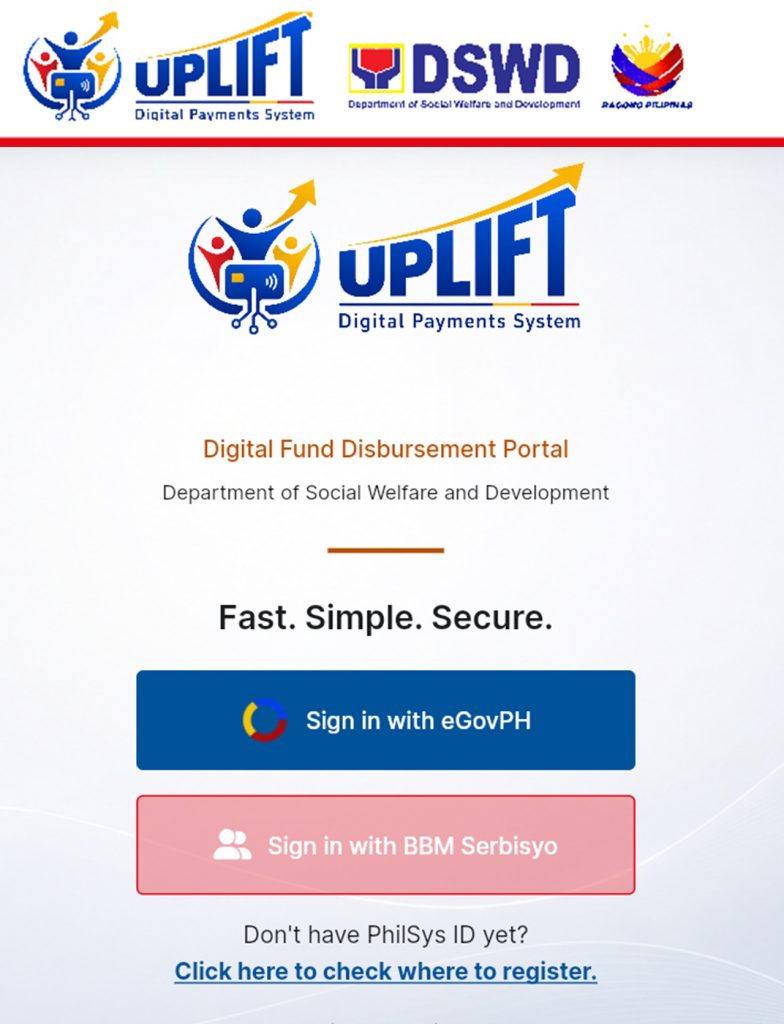
Though it may appear as a simple sign-in page — offering login options like eGovPH or BBM Serbisyo — on screen, it is so much more than that. Not only does it lead beneficiaries to a form where they submit or verify their preferred payment account details, it also serves as the digital bridge that replaces the manual payout line for Group 2 beneficiaries with one verified account and a steady, recurring transfer, so the selected family actually receives their remaining assistance without delays, errors, or rejected transactions. No rush. No skipped steps. Just one confirmed account, and a benefit that finally reaches the right hands.
Who This Portal Is For
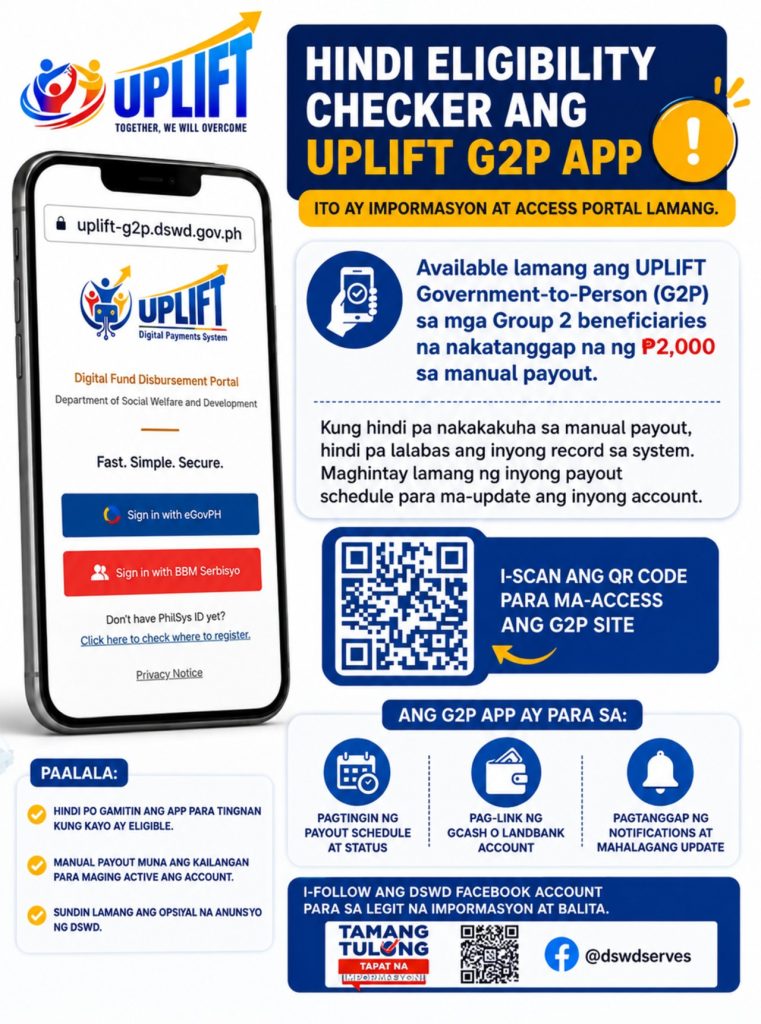
The UPLIFT G2P Portal is built specifically for qualified UPLIFT Group 2 beneficiaries — households who were pre-selected through the Community-Based Monitoring System (CBMS) and have already received their first ₱2,000 manual payout — who now need to enroll a verified account to receive their remaining tranches without needing to line up for another manual disbursement.
There is no general public application or walk-in sign-up to become a new UPLIFT beneficiary. The portal exists solely for already-approved beneficiaries who need to link an account to receive their remaining tranches. The registration must be done by the Household Head, or a listed Household Member, whose name matches the bank or e-wallet account being submitted.
What You Need
Before you even visit the website to access the UPLIFT G2P Portal, you will need:
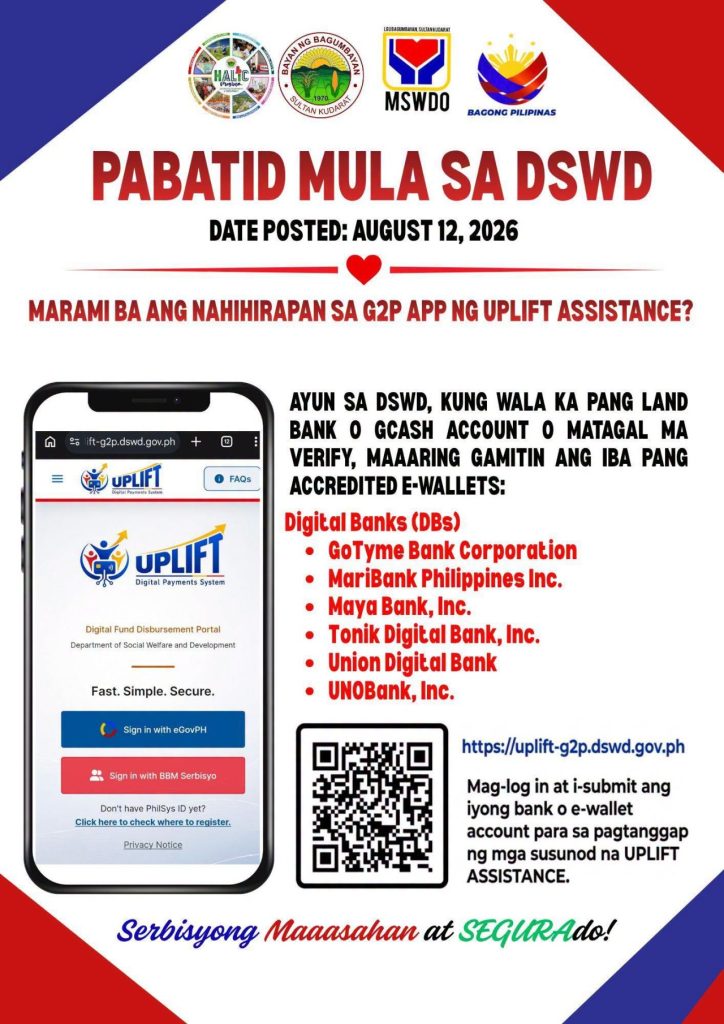
- An active, fully verified e-wallet (such as GCash) or an accredited partner bank/digital bank account, registered strictly under the Household Head’s or listed Household Member’s name.
- A stable internet connection, using a smartphone, tablet, laptop, or computer with a browser such as Chrome, Safari, or Edge.
- If signing in through GCash is difficult or the account can’t be verified in time, beneficiaries may use other DSWD-accredited digital banks, including:
- GoTyme Bank Corporation
- MariBank Philippines Inc.
- Maya Bank, Inc.
- Tonik Digital Bank, Inc.
- Union Digital Bank
- UNOBank, Inc.
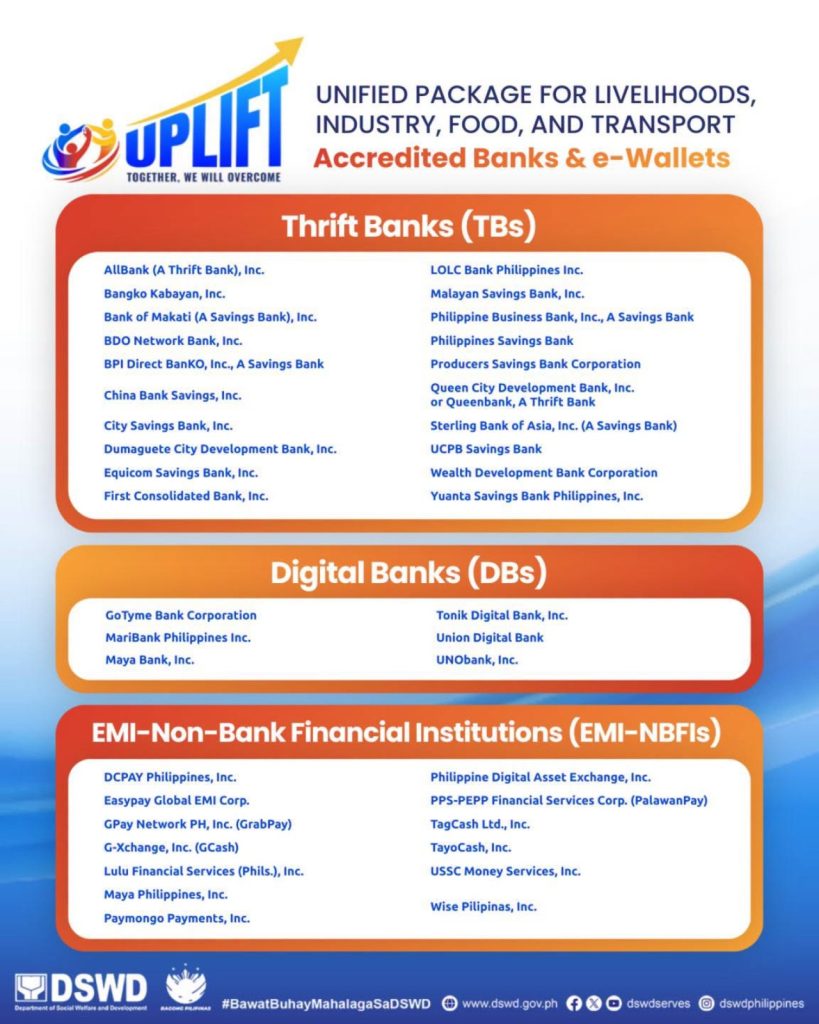
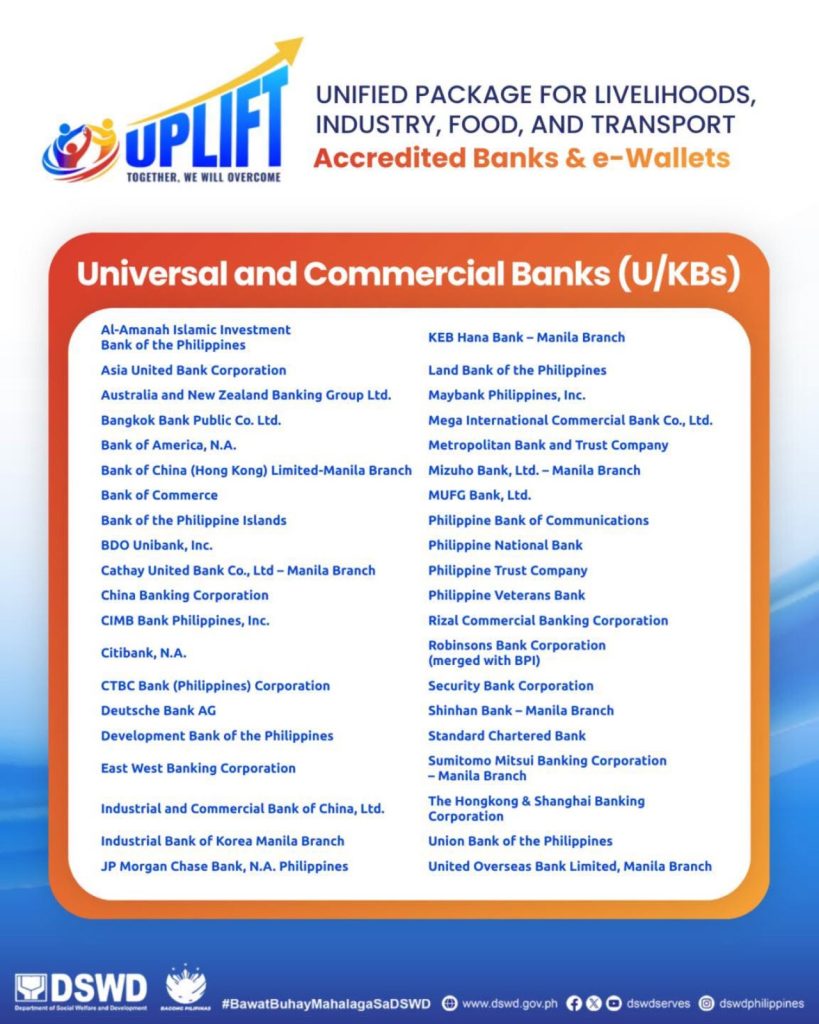
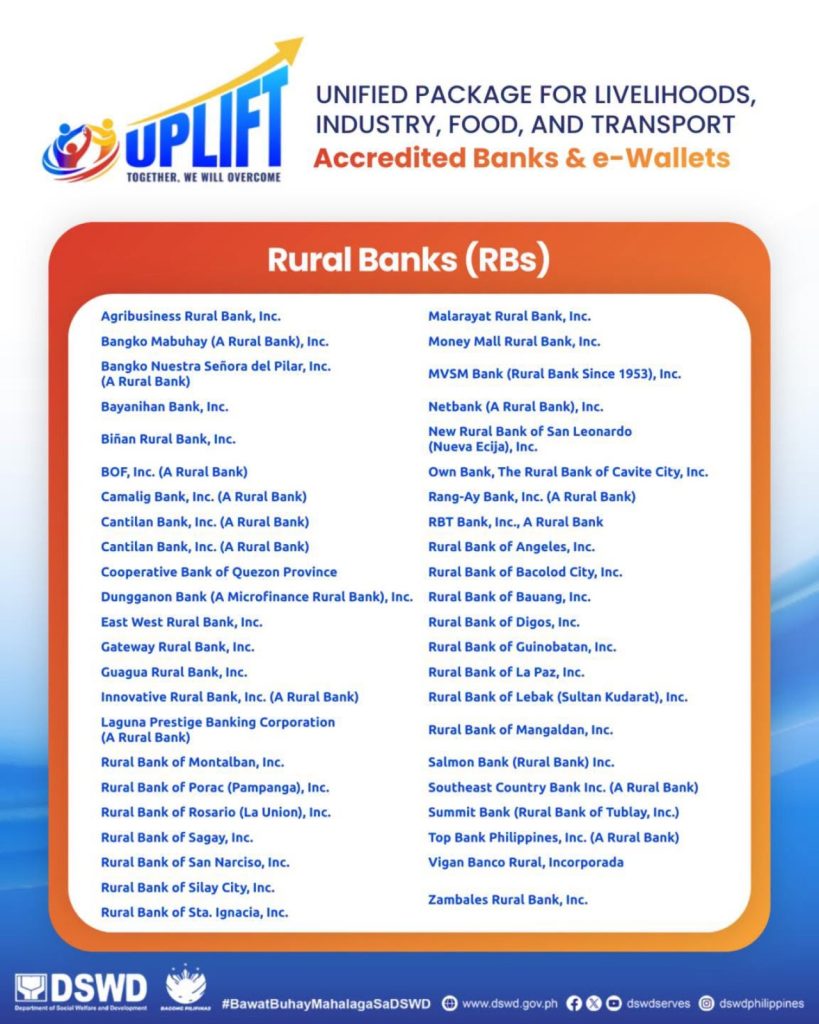
Note: For a complete list of the available FSP, you may check this list:
Step-by-Step: How to Register
For a detailed guide on registering on the UPLIFT G2P portal, you may simply follow these steps:
Step 1: Check your eligibility (optional first step).
Beneficiaries who want to confirm they qualify can do so at the official eligibility checker: https://uplift-g2p.dswd.gov.ph/check-eligibility.
Step 2: Access the portal.
Open a browser on your phone or computer and go directly to https://uplift-g2p.dswd.gov.ph. Avoid third-party links or forwarded messages claiming to be the portal.
Step 3: Sign in.
Use the sign-in option shown on the portal (either via eGov or the BBM Serbisyo), then link or select your verified e-wallet or partner bank account when prompted.
Step 4: Fill out or verify your details.
Make sure your registered mobile number matches the one linked to your active digital wallet or bank account, as this is used to confirm your identity.
Step 5: Upload valid ID.
The system will ask for your valid ID, so make sure you have or are able to take a clear photo or screenshot of your ID or digital ID card (front and back) and upload it as instructed.
Step 6: Submit and confirm.
Review everything carefully before submitting. Once done, the system should show a confirmation message with reference details — save or screenshot this for your records.
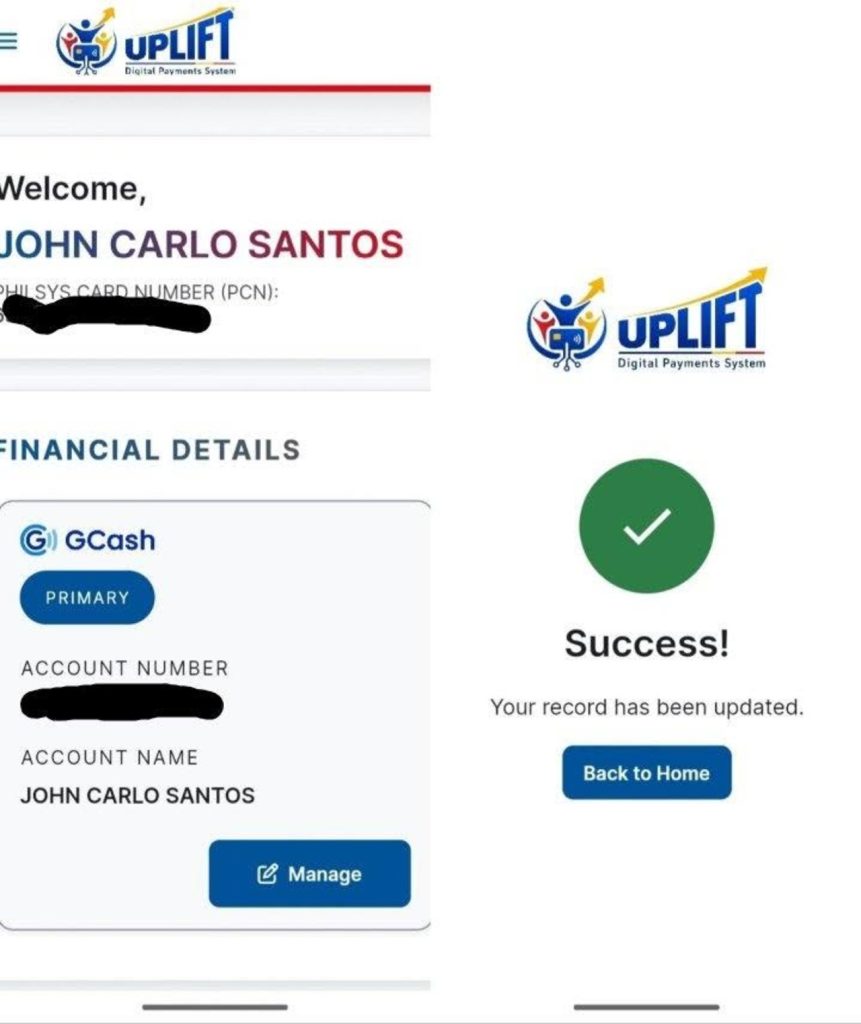
Step 7: Request disbursement
Once your account is KYC-verified, you may choose your nominated FSP and request for disbursement. The system will notify you that the request was successfully submitted. The requested disbursement will be credited to your nominated FSP once disbursement starts.
Need More Help?
For problems, errors, or other concerns, here’s a guide for you:
- If you encounter a submission error, login issue, or forgotten entry, do not try to resubmit repeatedly. Reach out to the official DSWD support channel or authorized personnel assigned to the UPLIFT program in your area.
- For incorrect account or mobile number details, contact support immediately so it can be corrected before it’s used for payment.
- For general updates, DSWD directs beneficiaries to its official Facebook page.